
The App Sidebar is a slide-out panel in the published app that lets users switch between different Quantum apps or data models. It is configured from the Studio toolbar — not a canvas component.
Table of Contents
Where to Find This
- In the Studio toolbar, click the Sidebar button — the last button in the zone row: Header | Canvas | 360s | Forms | Footer | Sidebar.
- The right panel switches to the Sidebar Configurator.
Configuring the Sidebar
- Enable sidebar — toggle on to activate the sidebar icon in the published app's header.
- Title — heading shown at the top of the slide-out panel.
- Navigation entries — links to other Quantum apps or selectable models, each with a label and destination.
- Mobile behaviour — toggle whether the sidebar is available in the mobile layout.
Using the Sidebar in the Published App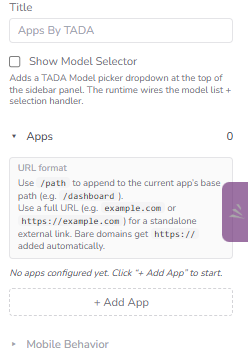
- Click the sidebar icon in the app's header.
- Select an entry to navigate to that app or switch the data model.
- Click outside or press Escape to close.
Your Apps
The sidebar now includes a Your Apps section, allowing you to switch to any of your other apps without returning to the home screen. Starred (favorited) apps appear at the top of the list, and starring an app in the sidebar keeps it starred on the home screen too.
How to use:
- In any running app, click to expand the sidebar.
- Scroll to Your Apps and click an app name to switch to it.
- Click the star icon next to an app to favorite it — it will move to the top of the list and remain favorited on the home screen.